Build Your Own Jarvis: A Teen's Guide to Making a Real AI Voice Assistant in Python
Tony Stark had Jarvis. You can build a version of your own — and it won't take a billion-dollar lab to do it. In this guide, we're going to build Mini Jarvis: a voice assistant that runs on your own laptop, answers questions out loud, does maths, saves notes, and thinks using a real AI model. No monthly subscription. No sending your data to a random server. Just Python, a free tool called Ollama, and about 150 lines of code.
This isn't a "toy" tutorial where you copy-paste ten lines and call it AI. It's the same core idea used in real products: a program that knows when to handle something itself, and when to hand it off to an AI model. That distinction is the whole trick — and once you get it, you'll start seeing it everywhere.
What You're Actually Building
Mini Jarvis has three parts, and thinking about them separately is what makes the project manageable:
- Ears and mouth — code that listens to your voice (or reads what you type) and speaks the answer back
- Tools — exact, no-mistakes code for jobs that don't need AI: what's the time, what's 12 × 47, save this note
- The brain — an AI model that handles everything else: general questions, explanations, conversation
Most beginner tutorials skip straight to "send everything to ChatGPT." That's a mistake, and here's why: asking an AI model "what time is it?" is slow, sometimes wrong, and pointless when datetime.now() gives you the exact answer instantly. Real AI assistants — Siri, Alexa, the assistant in your car — all work this way. They check "can normal code answer this reliably?" first, and only reach for AI when the question actually needs judgment or knowledge. You're about to build the same architecture.
What You'll Need
- A laptop (Windows, Mac, or Linux all work)
- Python 3.9 or newer installed
- About 30–45 minutes
- A microphone (built into most laptops) — or skip it and use typing mode instead
You'll also install two things:
- Ollama — a free program that runs AI models directly on your computer, with no internet connection needed once it's downloaded. Get it from ollama.com.
- A few Python packages, which we'll install with one command below.
Step 1: Install Ollama and Pull a Model
Download Ollama from ollama.com and install it like any normal app. Once it's installed, open your terminal (Command Prompt, Terminal, or PowerShell) and run:
ollama pull llama3.2:3b
This downloads a small AI model — about 2GB — that runs entirely offline on your machine. If your laptop is older or slower, use the smaller llama3.2:1b instead; it replies faster but with slightly simpler answers.
Step 2: Install the Python Packages
In the same terminal, run:
pip install ollama SpeechRecognition pyttsx3 pyaudio
Here's what each one does:
ollama— lets your Python code talk to the AI model you just downloadedSpeechRecognition— turns your voice into textpyttsx3— turns text back into speechpyaudio— lets Python access your microphone
If pyaudio gives you install trouble (it sometimes does on Windows), search "install pyaudio [your OS]" — it's a one-line fix specific to each system, and it's worth the two minutes.
Step 3: The Code, Piece by Piece
Here's the full project, broken into the three parts from earlier. Create a file called mini_jarvis.py and build it up section by section.
The mouth — speaking answers out loud:
python
import pyttsx3

_voice = pyttsx3.init()

def speak(text):
    print(f"Jarvis: {text}")
    _voice.say(text)
    _voice.runAndWait()
The ears — listening for your voice:
python
import speech_recognition as sr

def listen():
    recognizer = sr.Recognizer()
    with sr.Microphone() as mic:
        recognizer.adjust_for_ambient_noise(mic, duration=0.5)
        print("Listening...")
        audio = recognizer.listen(mic, phrase_time_limit=8)
    try:
        text = recognizer.recognize_google(audio)
        print(f"You: {text}")
        return text
    except sr.UnknownValueError:
        return ""
The tools — exact answers, no AI needed:
python
import datetime

def handle_tool(command):
    c = command.lower()
    if "time" in c and "what" in c:
        return "It's " + datetime.datetime.now().strftime("%I:%M %p")
    if "date" in c:
        return "Today is " + datetime.date.today().strftime("%A, %d %B %Y")
    return None  # nothing matched — let the AI handle it
Notice the pattern: if a tool can answer the question, it returns a string. If it can't, it returns None, which is your signal to pass the question along to the AI. That one None is doing a lot of work — it's the decision-maker of the whole program.
The brain — asking the AI model:
python
from ollama import chat

history = [{"role": "system", "content":
    "You are Mini Jarvis, a friendly assistant. Answer in 2-3 short sentences."}]

def ask_ai(question):
    history.append({"role": "user", "content": question})
    response = chat(model="llama3.2:3b", messages=history)
    answer = response.message.content.strip()
    history.append({"role": "assistant", "content": answer})
    return answer
The history list is what gives Jarvis memory within a conversation — every message you send and every reply it gives gets added to the list, so the AI can see what was already said. The system message at the top is the AI's personality setting: change that one sentence and Jarvis's whole tone changes.
Putting it together — the main loop:
python
def main():
    speak("Mini Jarvis online. How can I help?")
    while True:
        command = listen()
        if not command:
            continue
        if "goodbye" in command.lower():
            speak("Goodbye! Keep building.")
            break
        answer = handle_tool(command) or ask_ai(command)
        speak(answer)

if __name__ == "__main__":
    main()
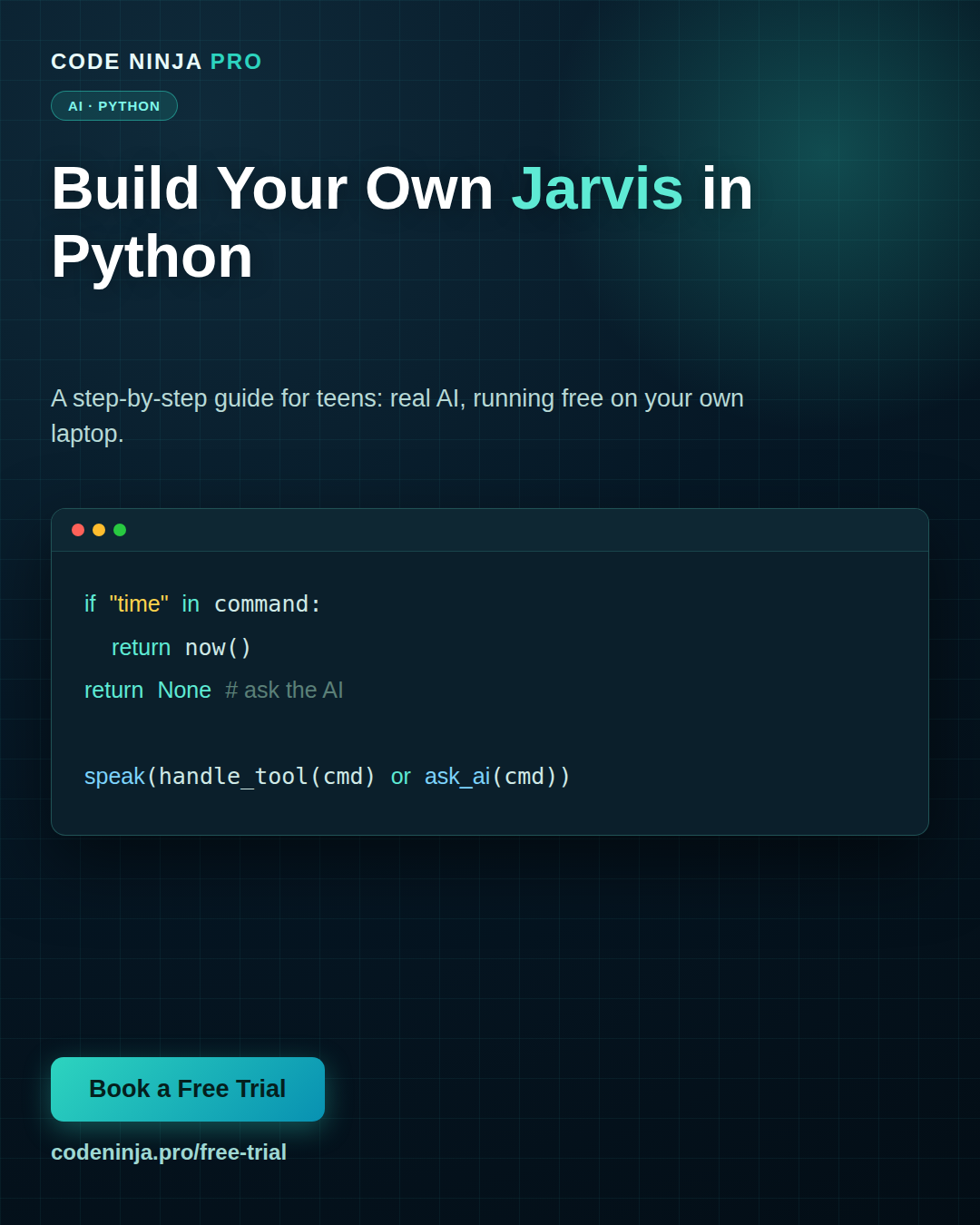
Read that answer = handle_tool(command) or ask_ai(command) line carefully — it's the whole project in one line. Python tries handle_tool() first; if that returns a real answer, it's used. If it returns None, Python falls through to ask_ai(). That's the "check code first, ask AI second" logic from earlier, written in a single line.
Step 4: Run It
python mini_jarvis.py
Say "what time is it," and Jarvis should answer instantly using your tool code — no AI involved. Then ask something like "what's a black hole," and it should think for a second and reply using the actual AI model. You've just built a system that knows the difference between a fact-lookup and a real question.
No microphone, or want to test faster? Add a text-mode option so you can type instead of speak — useful for debugging without talking to your laptop every time.
Where to Take It From Here
Once the basic version works, here are natural next upgrades, roughly in order of difficulty:
- Add a calculator tool — handle maths like "what's 12 times 47" without sending it to the AI (faster, and always exactly correct)
- Add a notes tool — let Jarvis save things you tell it to a text file, and read them back later
- Give it a wake word — instead of always listening, have it wait for you to say "Jarvis" first
- Swap the AI model — try a bigger model (if your laptop can handle it) and compare answer quality
Each of these is a small, self-contained addition to the same handle_tool() pattern — you're not rewriting the project, you're extending it.
Why This Matters More Than It Looks
It's easy to think of this as "just a fun weekend project," but the skill underneath it is a real one: deciding what a computer should compute directly and what it should hand to an AI model. That's the exact judgment call behind every serious AI product being built right now — including the AI Creator Program projects we run at Code Ninja Pro, where students build toward exactly this kind of system across a full course, not just one afternoon.
If this is the first time you've combined "normal code" and "AI code" in the same project, that's a genuine milestone. Most people who use AI tools only ever prompt them from the outside. You just built the thing that does the prompting.
FAQ
Do I need to pay for the AI model? No. Ollama runs models locally on your own computer for free, with no subscription and no per-question cost. The only requirement is enough free disk space and RAM to run the model (2–4GB for the model used in this guide).
Does Mini Jarvis need an internet connection? Once Ollama and the model are downloaded, no — the AI part runs completely offline. The voice-to-text step (SpeechRecognition) does use Google's free speech service by default, which needs internet; if you want a fully offline version, you can swap in an offline recognizer instead.
What if I don't have a microphone or don't want to use voice? Everything in this guide works exactly the same if you replace listen() with a simple input("You: ") and skip speak()'s audio output in favor of just printing the response. It's a smaller, easier version to build first if voice feels like too much at once.
Is this the same as what Siri or Alexa actually do? The core idea — decide locally when possible, ask an AI model when needed — is genuinely the same pattern real assistants use. The scale is obviously different (Siri has huge infrastructure behind it), but the architecture you just built is not a toy simplification of the real thing.
My laptop is slow — will this even run? Yes, with the smaller model. Swap llama3.2:3b for llama3.2:1b in the code, and it'll run on almost any laptop from the last several years. Answers come slightly faster and are a little simpler, which is a fair trade for weaker hardware.
Want to go deeper than a weekend project? In our AI Creator Program, students build a full sequence of AI-integrated apps across a whole course — with a project like this one as just the warm-up. Book a free trial class and see what your teen can build next.
Github Link: https://github.com/codeninjapro-my/Mini-Jarvis
Ready To Experience Coding First-Hand?
Join our FREE Trial Classes and discover the exciting world of coding, AI and robotics.